
How To Transfer eSIM To A New Phone: The Complete Guide
Table of Contents
- How To Transfer An eSIM To A New Phone?
- How To Move Around eSIM Cards (Step-by-Step Guide)
- How To Do eSIM Quick Transfer on iPhone?
- How To Move An eSIM Between Android Phones?
- How To Switch eSIM Between Different Mobile Operating Systems?
- Troubleshooting Common eSIM Transfer Issues
- "No Service" or Failure to Activate
- Not Working or Unable to scan the QR Code
- The eSIM profile appears, but there is no connection
- Reach out to your eSIM provider
- FAQs About Moving eSIMs Between Phones
Switching to a new smartphone is an exciting decision.
Changing your phone in olden times usually involved swapping a physical SIM card. However, the rise of eSIM technology has changed this.
Have you embraced the convenience of an embedded SIM? If so, "How do I transfer my eSIM to a new phone?" is probably on your mind.
For busy people who cannot afford to have their crucial communications interrupted, this is a crucial question. Maintaining business continuity and guaranteeing continuous access to your personal and professional networks depends on your eSIM transfer.
Are you integrating several lines or transferring your current number to a new device? Or maybe you are dealing with a lost phone. Regardless of the reason, understanding how to transfer an eSIM is vital.
A common query is: "Can you transfer eSIM to another phone?" The answer is “Yes”.
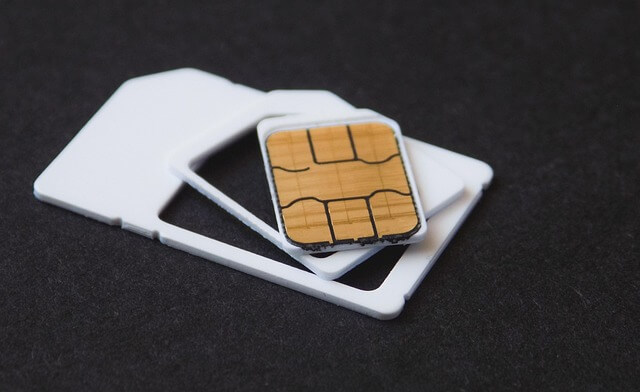
Indeed, eSIM transfer is often straightforward…once you know the process.
In this regard, this guide will describe precise procedure for transferring your eSIM between phones.
How To Transfer An eSIM To A New Phone?
It is not uncommon to need to transfer your eSIM to a new device, particularly with the current smartphones' development speed.
Whilst this is possible, it is crucial to remember that the method varies based on your phone's operating system and your eSIM provider's procedures.
Before beginning any transfer, some important steps to take before transferring an eSIM include:
- Ensure your new device is eSIM-compatible.
- Both your old and new phones should be connected to a stable Wi-Fi network.
These initial checks make a more seamless eSIM transfer possible.
If you need to purchase an eSIM for staying connected when abroad, check out our eSIM comparison engine that helps you compare numerous eSIM providers easily to select the best eSIM for international travel.
How To Move Around eSIM Cards (Step-by-Step Guide)
This section provides detailed instructions on how to move around eSIM cards in various scenarios.
How To Do eSIM Quick Transfer on iPhone?
The "eSIM Quick Transfer" feature on iPhones allows you to move your mobile plan without calling your eSIM provider. The condition? Both iPhones should run iOS 16 or later and be nearby.
Apple's iPhones offer a built-in "eSIM Quick Transfer" feature for direct phone-to-phone moves. Here is how to perform an eSIM quick transfer:
- On your new iPhone, select Settings > Cellular > Add eSIM.
- Choose a cellular contract while moving from another device. If you do not see a list of numbers, select “Transfer From Nearby iPhone”.
- Ensure your old iPhone has Bluetooth turned on, is unlocked, and is linked to Wi-Fi. Place it physically close to your new iPhone for secure device communication.
- Check the instructions on your old iPhone to validate the transfer. To confirm, press “Transfer” or, if prompted for a verification code, enter the one your new phone displays.
- Wait until your cellular plan activates on the new phone. When you activate your new iPhone's cellular plan, your existing SIM card gets deactivated.
- Do you see a banner on your new iPhone saying “Finish Setting Up Your Carrier's Cellular Plan?” If yes, press it. You can now transfer your eSIM after your smartphone displays your carrier's website.
- On your new iPhone, follow the on-screen directions. You will download and activate the eSIM profile. Then, your cellular service should be active.
Apple offers an eSIM Quick Transfer features for iPhones on iOS 16 or later. This helps you seamlessly move an eSIM from one iPhone to another.
How To Move An eSIM Between Android Phones?
If you are an Android device owner, the eSIM transfer process depends on:
- The Android version,
- The manufacturer (Samsung, Google Pixel, etc.), and
- eSIM provider support.
Here are the common methods for moving eSIM from one phone to another between Android devices.
- Check for Built-in Transfer (Newer Androids): Some newer Androids (like Google Pixel) offer simplified eSIM transfer during setup. Look for "Transfer data and settings" or "Copy apps & data", which might include a "mobile plan" transfer option. Follow on-screen prompts, which may involve QR code scanning or old phone confirmation. Check your device's settings or manufacturer support for specifics. To activate, connect both devices to Wi-Fi.
- Carrier-Assisted Transfer (Most Common): Here are the steps needed to move your eSIM from one Android phone to another:
- Step 1 - Deactivate eSIM from the old phone. Your eSIM provider will deactivate your eSIM from old phone before the transfer. Still, eliminating the eSIM profile from your old Android device is possible. Follow this path: Settings > Network & Internet > SIMs (or Connections > SIM Manager). Then select your eSIM and choose "Delete".
- Step 2 - Contact your eSIM provider. Explain that you need to transfer your eSIM to a new Android phone. Provide device models. The eSIM provider might verify your identity before they create a new QR code for your new device and provide it by physical card, email, or app. They will then guide you through activation or direct you to an online portal.
- Step 3 - Activate eSIM on the new phone. On your new Android phone, go to Settings > Network & Internet > SIMs (or Connections > SIM Manager). Select "Add eSIM" or "Download a SIM" then scan the QR code provided by your carrier. Follow on-screen prompts.
How To Switch eSIM Between Different Mobile Operating Systems?
If you are moving eSIMs between Android devices and iPhones, you will almost always need to involve your eSIM provider.
Here is the general process:
- Contact your mobile network operator: Reach out to customer support (phone, chat, or store).
- Deactivate on the old device: Inform your carrier that you are moving your eSIM service. You can delete the profile from your old phone's settings as below:
- Settings > Cellular > eSIMs on iOS
- Settings > Network & Internet > SIMs on Android
- Request your eSIM transfer: State that you want to transfer your existing eSIM number from your old device to a new one. They will guide you through their process.
- Obtain a new eSIM activation method: Usually, your carrier will provide a new QR code to activate the eSIM. Ensure you can view or scan this code on another screen or print it.
- Activate on New Device: Here are the steps for each operating system:
- On iPhone (from Android): Navigate to Settings > Cellular > Add eSIM. Select "Use QR Code" and scan the carrier-provided code.
- On Android (from iOS): Go to Settings > Network & Internet > SIMs (or Connections > SIM Manager). Look for "Download a SIM" or "Add eSIM", then scan the new QR code.
- Follow on-screen prompts: Your device will guide you through the final steps. Stay connected to Wi-Fi.
However, contacting your carrier ensures a proper deactivation on their system, preventing issues.
This carrier-assisted method is not instant as there are a few steps involved. Yet, it is secure and effective for cross-OS eSIM transfers.
Troubleshooting Common eSIM Transfer Issues
Attempts to transfer your eSIM from one phone to another can occasionally go wrong. Are you having trouble? Here are some efficient troubleshooting techniques.
"No Service" or Failure to Activate
- Verify Wi-Fi: Ensure the Wi-Fi connection on your new phone is strong and steady.
- Restart Phone: A simple restart can fix temporary issues.
- Check Carrier Status: Visit their website to see if there are any carrier outages or maintenance.
- Retry Activation: If an error occurs, try the steps again. Additionally, make sure the previous eSIM profile has been deleted or deactivated.
Not Working or Unable to scan the QR Code
- Lighting/Surface: Use a flat, readable QR code and scan in bright light.
- Clean Lens: Clean the camera lens on your phone.
- Modify Distance: To aid in focus, slightly alter the distance.
- Ask for a New Code: Are the problems still present? Request a new code from your carrier. The last one may have been corrupted or expired.
The eSIM profile appears, but there is no connection
- Toggle airplane mode: To restart the connection, turn it on for ten to fifteen seconds and then turn it off.
- Verify the APN configurations: In rare cases, APN settings - which are typically automatic - may be incorrect. Therefore, compare them to your carrier's support page.
- Mobile data on: Verify in settings that your eSIM profile has mobile data enabled.
Reach out to your eSIM provider
In case none of the above troubleshooting steps resolve the problem, contact your eSIM Provider. Their diagnostics may fix the majority of eSIM issues.
FAQs About Moving eSIMs Between Phones
Here are some frequently asked questions concerning transferring an eSIM from one phone to another.
I want to transfer my eSIM. What details do I need to provide to my eSIM provider?
Have your account information (account number, etc.) available for verification when you call your mobile network provider. You may need the IMEI and possibly the EID of your new cell phone. You can locate them by dialing *#06# or by going to Settings > About Phone on your device.
Is it safe to transfer my eSIM?
Transferring eSIMs is safe. The profile does not include personal information, such as contacts or images; only information about the cellular plan is included. Additionally, secure encryption and verification are some transfer methods.
After a successful transfer, what should I do with the eSIM from my old phone?
We advise removing the eSIM profile from your old phone after you have verified the service on your new one. This will ensure there are no security issues or unintentional reconnection. Usually, the cellular settings on your phone allow you to do this.
Can I use the same eSIM profile on two phones at once?
Generally, no. An eSIM profile usually deactivates on the old phone when you move it to a new one. Typically, you need a separate line or particular carrier add-ons for smartwatches and tablets if you want service on multiple devices.
Do You Need To Find A Reliable And Cost-Effective Data Plan For International Travel?
RemitFinder is an online service that helps you compare eSIM data plans from numerous eSIM providers. By comparing various eSIMs, you can get the best eSIM for your trip and ensure you stay connected when overseas. RemitFinder, thus, helps you to get the best eSIM for international travel.
Categories


Similar Articles


Which Mobile Phones Support eSIMs?
Find out which mobile phones support eSIMs. Check device compatibility and learn how to use eSIMs for travel and everyday connectivity.
How To Transfer eSIM From iPhone To Android
Learn how to transfer an eSIM from iPhone to Android. Follow step-by-step instructions, compatibility tips, and best practices for a smooth switch.
Can You Have Multiple eSIMs? The Complete Guide
Can you use multiple eSIMs on one device? Learn how it works, device compatibility, and how to manage multiple eSIMs for travel or everyday use.